
A word-synced reading video shows a text on screen and lights up each word at the moment it is spoken. For an early reader, that turns “follow along” from a hope into something they can actually see. Here is how to make one from your own voice and a short text, in about fifteen minutes.
01Why sync word by word?
Most captions show a whole line at once. A confident reader can find their place in it; a new reader often cannot. They hear the voice, look at a row of words, and have to guess which one is being said.
Highlighting each word as it is read removes the guess. The spoken word and the written word arrive together, which is exactly the link an early reader is building. It also helps students learning English as an additional language, and students who lose their place easily.
- Line-by-line captions tell a reader which sentence is being read.
- Word-by-word highlighting tells them which word, at the moment it is said.
02Choose a short, decodable text
The video is only as useful as the text in it. A few things make a big difference:
- Match the phonics stage. A decodable passage that uses the sounds your students have been taught means the video practises reading, not guessing.
- Keep it short. 40 to 120 words is plenty for a first video. You can always make a second one.
- One sentence or phrase per line. Short lines keep the eye moving left to right without long sweeps back across the screen.
- Write it exactly as you will read it. If you say “do not”, do not type “don’t”. Every word on screen needs a matching word in the audio.
Picture books, class-made stories, sight-word sentences and a rhyme the class already knows all work well.
03Record yourself reading it
Your own voice is usually the best one to use. Students know it, and you control the pace. A phone voice memo is good enough, or you can record straight into Wordwave with the computer’s microphone (see step 4). The same tips apply either way.
- Find a quiet room with soft furnishings. An empty classroom after the bell is better than a staffroom.
- Hold the phone about a hand-span from your mouth, slightly to one side so your breath does not hit it.
- Leave a second or two of silence before the first word.
- Read a little slower than normal, with clear gaps between words and a short pause at the end of each line. For the very youngest readers, slower still.
- Keep the pace steady. Expression is good; sudden bursts of speed are hard to follow.
Students can record too. A student reading their own text, then watching it back with every word lighting up, is a powerful thing. Keep recordings of students on school-approved devices, and check your school’s guidance before anything is shared outside the classroom.
04Start a reading project
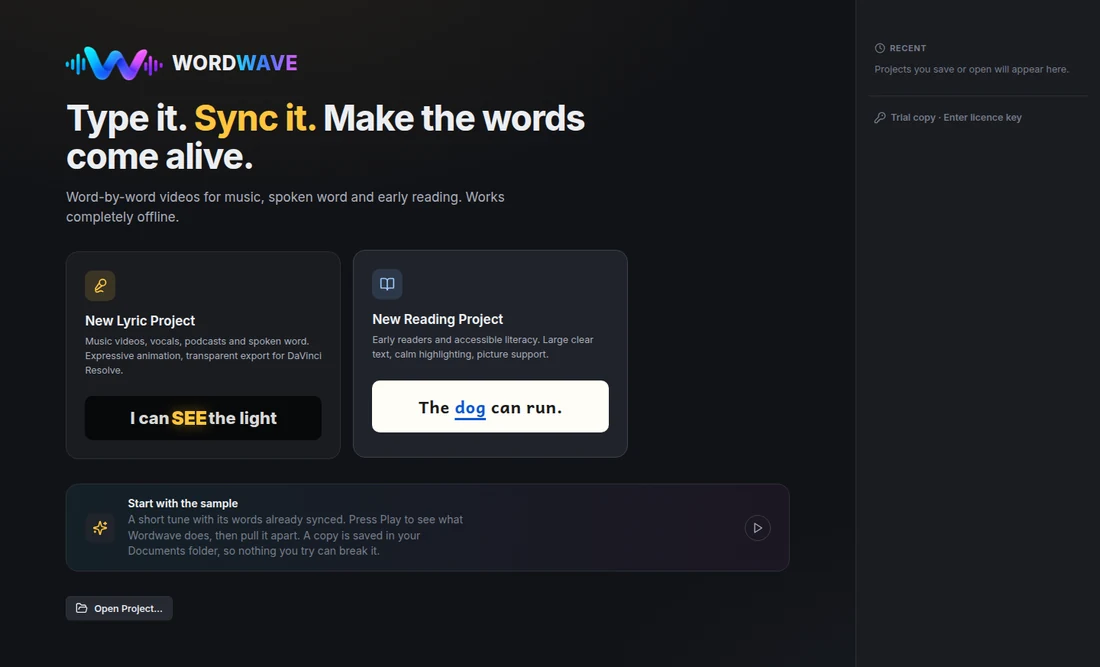
In Wordwave, choose a new reading project from the opening screen. Reading mode is built for early readers: clear type and very little animation, so nothing competes with the words.
- Paste your text. Wordwave splits it into lines and words, keeping your line breaks.
- Bring in your recording. MP3, M4A (the usual format for an iPhone voice memo), WAV and most other audio files work.
- Or record it now. Choose Record your voice, pick your microphone, then read aloud and tap the space bar on each word as you say it. The timing is done when you stop, so you can go straight to step 6.
- Pick a reading font. Wordwave includes four designed for legibility: Atkinson Hyperlegible, Lexend, Andika and Inter. Andika was designed for beginning readers, with letter shapes such as a single-storey “a” that match how children are taught to write.
05Tap along to sync the words
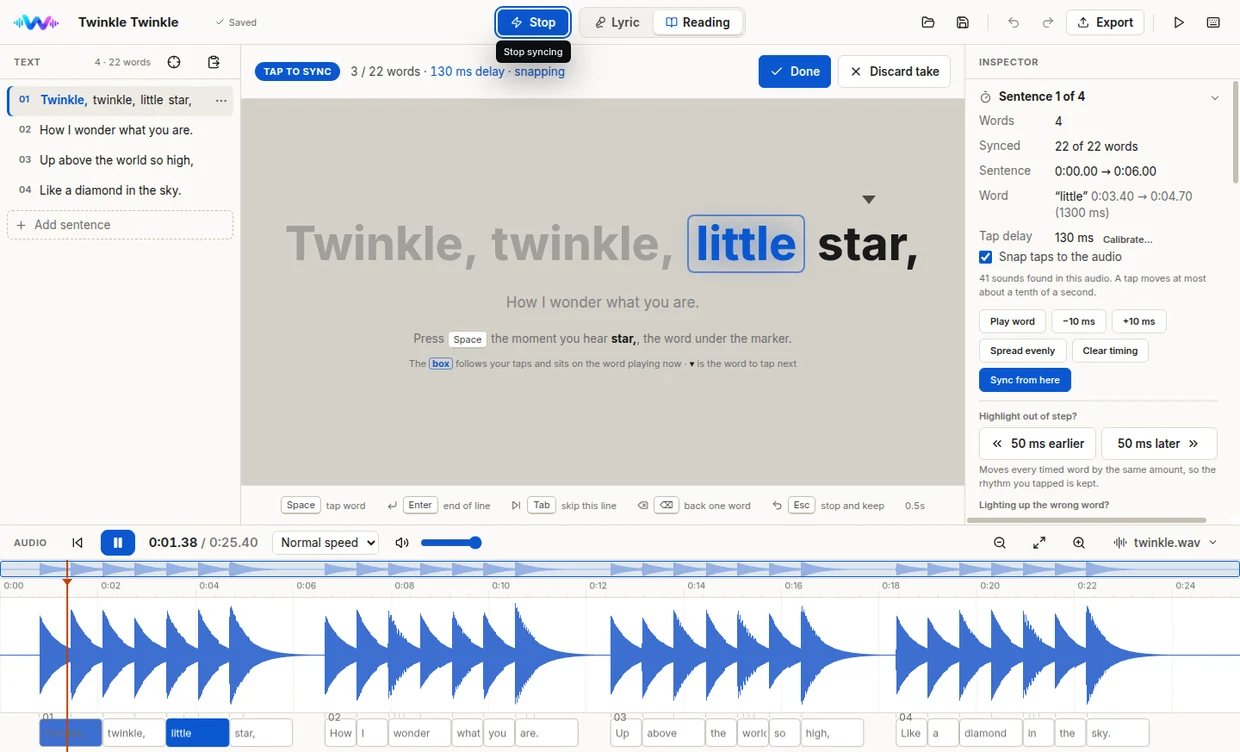
This is the step that used to take hours in video software. In Wordwave you press play and tap the space bar once on each word as you hear it. That is the whole of the timing.
- Slow it down if you need to. You can slow the audio while you tap; the finished video still plays at full speed.
- Do not worry about being a fraction late. Wordwave measures your reaction time, corrects for it, and nudges each tap onto the instant the word starts.
- Missed one? Keep going. You can step back a word, skip a line or redo a single line on its own afterwards.
06Check it, then export
Watch the whole video through once before exporting. You are looking for any word that lights up early or late; fix it by redoing just that line.
Then export an MP4. It plays on an interactive whiteboard, from a school drive, in a learning platform, or on a home device. If you would rather use the timings somewhere else, Wordwave can also save subtitles as SRT or WebVTT.
07Using it in the classroom
A reading video is most useful as part of a routine rather than something to watch once. One sequence that works well:
- Listen and watch. Students follow the highlight with their eyes, or a finger on the screen.
- Echo read. Pause after each line and have the class repeat it.
- Read together. Play it through and read along with the voice.
- Read without it. Show the text on its own, or a printed copy, and let students try.
Because the file is an ordinary MP4, it can also go home, so a student practises with the same voice and the same text they met in class.
08Common questions
Can I do this without special software?
Yes, in a general video editor, by adding a separate highlight for every word and lining each one up with the audio by hand. It works, but a 60-word passage can take an hour or more. Wordwave exists because that was too slow to do every week.
How long should a reading video be?
For early readers, under two minutes. Short videos get watched again, and repetition is the point.
Do I need the internet?
Not for Wordwave. It works entirely offline, needs no account, and keeps your recordings on your own computer.